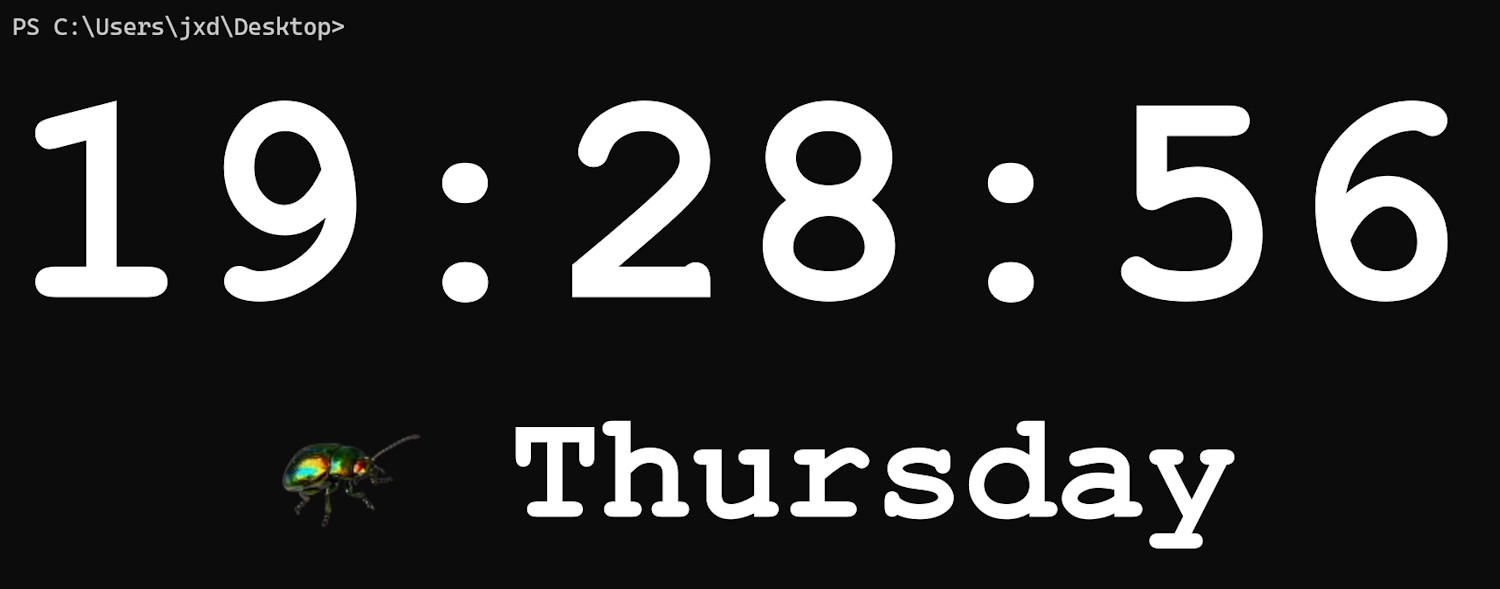

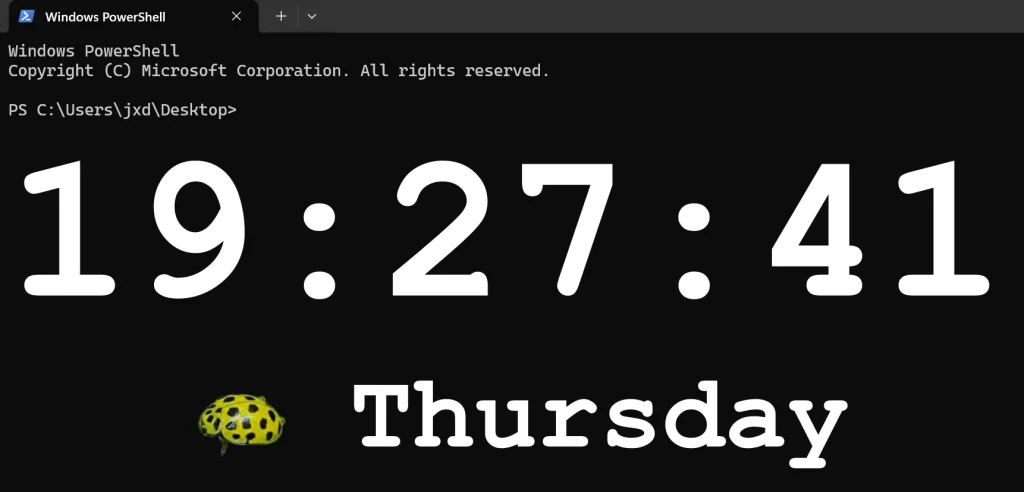
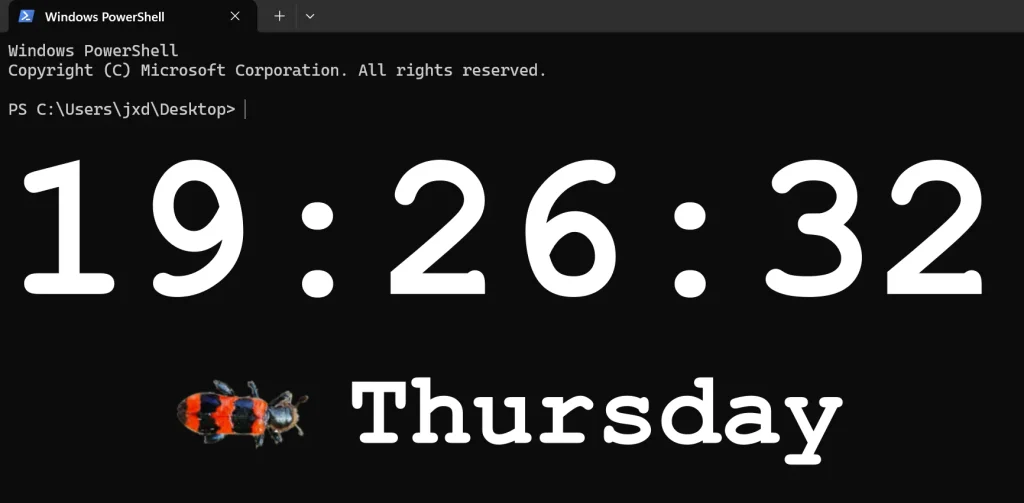
Transparent desktop clock for Windows featuring 24 bugs by Jaroslav M. Soukup.
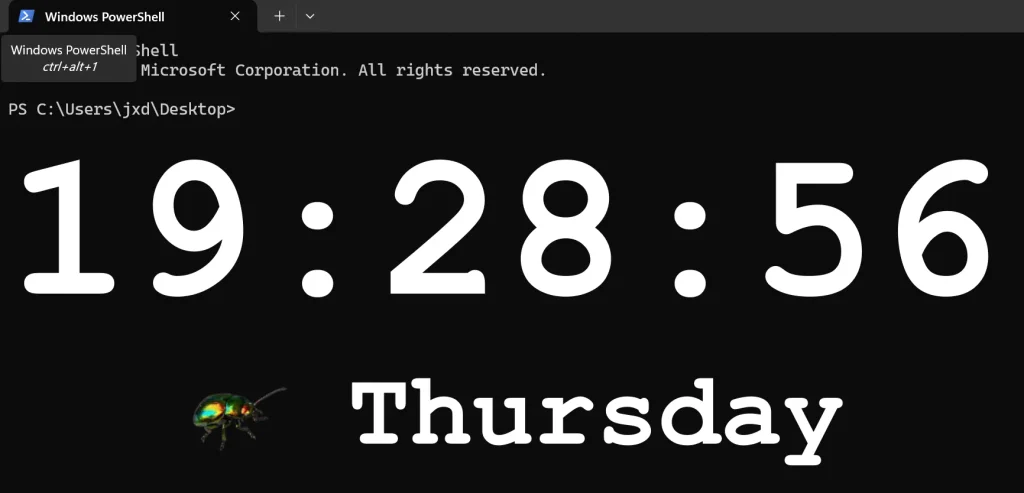
Launching
- Install from Microsoft Store. Access the menu by right-clicking the clock or the bug icon in the Windows system tray.
- Size / Color / Font: Adjust the size, choose between white, black, or green, and select from 9 fonts (listed alphabetically). The „(fallback)“ label indicates a font that is not installed; Qt will use a substitute font instead.
- Change bug: Set the interval to 10, 30, or 60 seconds, or 3, 5, 10, or 60 minutes. The bugs cycle sequentially from 1 to 24, then restart from 1.
- 0 sec: Opens the catalog; selecting a number (1–24) will keep that specific bug displayed permanently. „Cancel“ maintains the current mode.
- Start with Windows: Enables or disables automatic launch of this application instance upon user login.
- Always on the top / Lock position: Keeps the window on top of others and locks its position on the desktop.
- About / Exit: View information or close the application.
When unlocked, the clock can be moved using the left mouse button. Default settings: Bug 1, static display, Courier New font, white color, size 100, and „Always on the top“ enabled. The height of the bug matches the original TuxClock, with the original drawing proportions preserved.
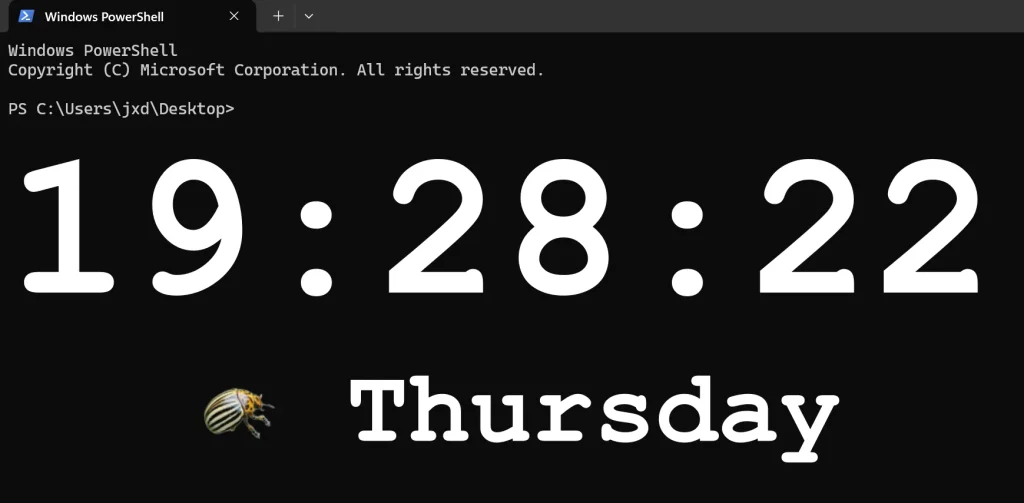
Settings
Stored in %USERPROFILE%\.bug_clock_config.json. The application uses a separate lock file (.bug_clock_config.lock) and allows only one instance to run per user profile. The standalone EXE uses the „Bug Clock“ value in the user registry key Software\Microsoft\Windows\CurrentVersion\Run for autostart. The MSIX version uses the BugClockStartup task via Windows StartupTask; its loading and any modifications occur outside the main thread. It does not create VBS files and does not modify TuxClock. If you move the standalone EXE, re-enable autostart from the new location.
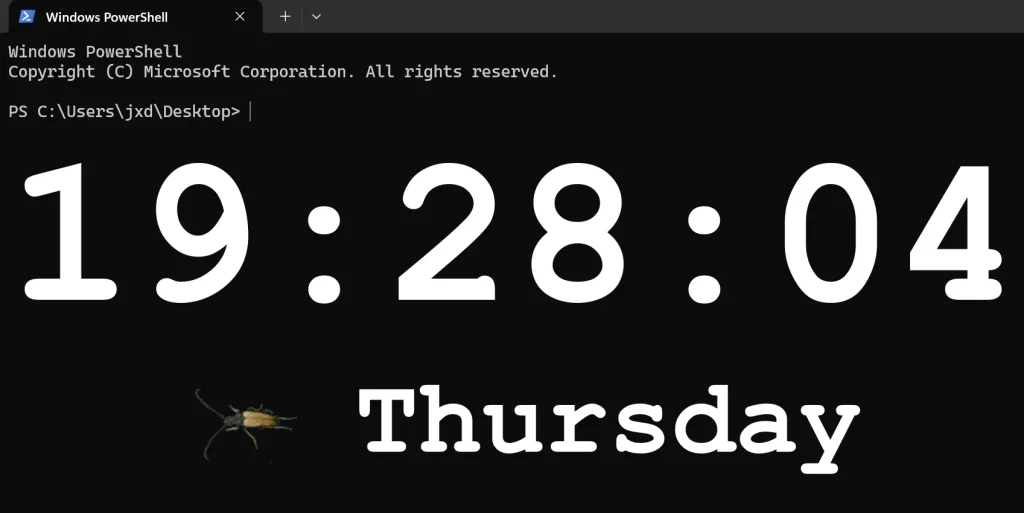
Credits & Copyright
- Concept & Software: © Jiri X. Dolezal (https://jxd.cz/)
- Photography: © Jaroslav M. Soukup
- Organization: JXD VibeLabs
- Contact: jxd@jxd.cz
CZ
Bug Clock
Průhledné desktopové hodiny pro Windows s 24 brouky Jaroslava M. Soukupa.
Spuštění
Instalujte z Microsoft Store. Menu otevřete pravým tlačítkem na hodinách nebo na ikoně brouka v oznamovací oblasti Windows.
- Size / Color / Font: velikost, bílá/černá/zelená a 9 abecedně seřazených fontů.
(fallback)označuje font, který není nainstalovaný; Qt použije náhradní písmo. - Change bug: intervaly 10, 30, 60 sekund, 3, 5, 10 a 60 minut. Brouci se střídají postupně 1–24, potom znovu od 1.
- 0 sec: otevře katalog; potvrzené číslo 1–24 zůstane trvale zobrazené. Cancel ponechá původní režim.
- Start with Windows: zapne/vypne automatické spuštění aktuální kopie aplikace po přihlášení.
- Always on the top / Lock position: zobrazení navrchu a uzamčení polohy.
- About / Exit: informace a ukončení.
Odemknuté hodiny přesunete levým tlačítkem. Výchozí stav je brouk 1, statické zobrazení, Courier New, bílá, velikost 100 a vždy navrchu. Výška brouka odpovídá původnímu TuxClock; proporce kreseb se zachovávají.
Nastavení: %USERPROFILE%\.bug_clock_config.json. Aplikace používá samostatný zámek .bug_clock_config.lock a dovoluje jednu instanci pro daný profil. Samostatné EXE používá pro autostart hodnotu Bug Clock v uživatelském klíči registru Software\Microsoft\Windows\CurrentVersion\Run. MSIX používá úlohu BugClockStartup prostřednictvím Windows StartupTask; její načítání a změny běží mimo hlavní vlákno. Nevytváří VBS soubory a nemění TuxClock. Po přesunu samostatného EXE znovu zapněte autostart z nové kopie.
Credits & Copyright
- Concept & Software: © Jiri X. Dolezal (https://jxd.cz/)
- Photography: © Jaroslav M. Soukup
- Organization: JXD VibeLabs
- Contact: jxd@jxd.cz