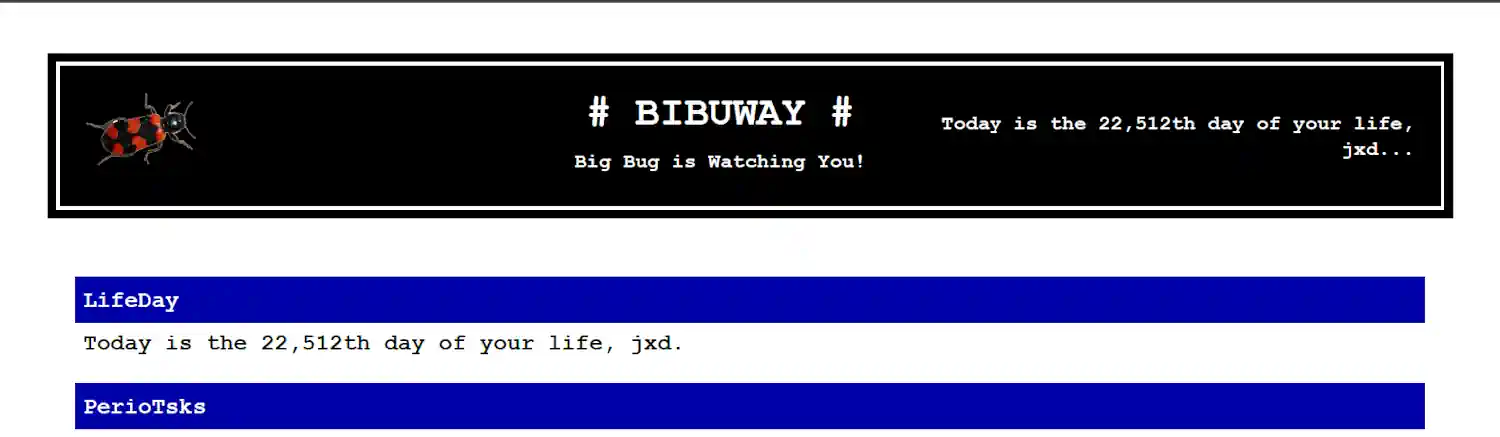

1. What BIBUWAY does
BIBUWAY is a personal diary and change monitor for Windows. It shows reminders and reports changes found during its checks. A scan means one round of checks. BIBUWAY scans when it starts and normally checks again every two hours while it is running and not paused. It can also check immediately when you click SCAN NOW or save settings. BIBUWAY checks at intervals. A brief change that happens and disappears between scans may not be detected.

2. Getting started
- Open BIBUWAY.
- Click SETTINGS.
- Enter your date in LifeDay.
- Add any websites, files, folders, programs, network targets, or reminders you want to monitor.
- Click SAVE.
You can leave monitoring lists empty if you do not need them. For most change monitors, the first successful check creates a starting reference. Later checks compare against it. Adding something to a monitoring list does not normally produce an immediate change message.

3. How to enter information
In the large text boxes, put one item on each line. Empty lines are ignored. Some entries use a vertical bar: |. This separates parts of an entry. For example:
Anna's birthday|15|6|1990|1|y
Enter the vertical bars exactly as shown. Do not replace them with slashes or commas. For file and folder paths, use the full address shown in File Explorer. Do not add quotation marks, even when the path contains spaces. The examples below illustrate the required format. Replace them with your own information.
4. LifeDay — your day of life
LifeDay calculates which day of your life today is.
There are three separate fields:
| Field | Meaning | Example |
|---|---|---|
| Day | Your day of birth | 15 |
| Month | Your birth month, from 1 to 12 | 6 |
| Year | Your full birth year | 1990 |
These examples mean 15 June 1990.
Enter numbers only. Do not type a complete date into one field. The date you enter counts as day 1. The next day counts as day 2. The displayed sentence includes your Windows account name, for example:
“Today is the 13,000th day of your life, Alex.”
LifeDay has no name field: the name comes from Windows. A future date does not produce a LifeDay entry in the main results.
5. PgCtrl — website text changes
PgCtrl checks whether the extracted text of a public web page has changed since its previous successful check. Format: one complete website address per line.
Example:
Start the address with https:// or http://. Prefer https://. You can enter up to 30 addresses. PgCtrl compares the page text it downloads. It does not compare screenshots, colours, or page layout. A detected difference appears under PgCtrl, followed by CHANGED and the page address.
Limitations:
- Pages requiring your browser’s login session are not supported.
- Text loaded only after JavaScript runs may not be included.
- Local and private-network destinations are blocked.
- Unsupported responses and downloads exceeding the 4 MB safety limit cannot be checked.
- Failed page requests are skipped and the previous comparison reference is kept. No message does not prove that the page was successfully checked.
6. FileWatch — changes to individual files
FileWatch checks selected files for creation, deletion, or changes.
Basic format:
C:\Users\Alex\Documents\budget.xlsx
This compares whether the file exists, its size, and its recorded modification and creation times.
Format with a content fingerprint:
C:\Users\Alex\Documents\budget.xlsx|hash
Adding |hash also makes BIBUWAY read the file and calculate a fingerprint of its contents. This provides an additional way to detect differences. You can enter up to 20 file entries.
Possible messages:
| Message | Meaning |
|---|---|
| CREATED | A previously missing file is now present. |
| DELETED | A previously present file is now missing. |
| CHANGED | The recorded file information or enabled fingerprint differs. |
| ERROR | BIBUWAY could not complete the check, for example because access was denied. |
An error keeps the previous reference rather than treating the file as deleted. FileWatch reports differences. It does not keep backup copies or restore earlier versions.
7. FolderWatch — changes inside folders
FolderWatch checks files inside a selected folder and its subfolders.
Format: one full folder path per line.
Example:
C:\Users\Alex\Documents
You can enter up to 20 folder entries. It reports files as CREATED, DELETED, or CHANGED, using their presence, sizes, and recorded modification and creation times. No extra instruction is needed to include subfolders.
FolderWatch does not calculate content fingerprints. Empty-folder changes are not reported as separate events. An ERROR means the check could not be completed. The previous comparison reference is retained.
8. ProcWatch — whether a program is running
ProcWatch checks whether a program with a particular Windows process name is running. A process name is the executable name shown in Windows Task Manager, usually ending in .exe.
Example:
notepad.exe
Enter the process name only, without its folder path. You can enter up to 20 process names. Letter case does not matter.
Possible messages:
- STARTED: the program was absent at the previous check and is present now.
- STOPPED: the program was present at the previous check and is absent now.
These messages describe the difference between checks. They are not an exact record of every launch and exit. ProcWatch does not open, close, or restart the program. A running process also does not prove that the program is responding correctly.
9. NetWatch — whether a public connection is reachable
NetWatch checks whether it can open a connection to a public internet destination.
Basic format:
example.com
This uses port 443, commonly used for secure websites.
Format with a chosen port:
example.com|80
A port is a numbered connection point on a server. Use the port number supplied by the service you want to check. Allowed numbers are 1 to 65535. You can enter up to 20 targets. Do not include https://, a page path, or a trailing slash. NetWatch accepts a public hostname or public IP address, not a complete website address. Local and private-network destinations are blocked.
Possible messages:
| Message | Meaning |
|---|---|
| DOWN | A previously reachable target could not be reached. |
| OK | A previously unreachable target is reachable again. |
| BLOCKED | The entry or resolved destination is not allowed. |
A DOWN result can also be caused by your internet connection, a firewall, or a name-resolution problem. It does not prove that the remote server has failed. An OK result confirms a connection was possible. It does not confirm that a website’s pages or other service functions work correctly.
10. Anniv — anniversaries and dated reminders
Anniv creates repeating reminders from a complete starting date, including the year.
Format:
name|day|month|year|interval|unit
| Part | Meaning | Example |
|---|---|---|
| name | Text shown when the reminder is due | Anna's birthday |
| day | Day of the starting date | 15 |
| month | Month number | 6 |
| year | Full starting year | 1990 |
| interval | How many days, months, or years between reminders | 1 |
| unit | d for days, m for months, or y for years | y |
Use a positive whole number for the interval and lowercase letters for the unit.
Every year on 15 June:
Anna's birthday|15|6|1990|1|y
Every 14 days, beginning on 1 January 2026:
Check supplies|1|1|2026|14|d
Every three months on the 10th, beginning on 10 January 2026:
Quarterly review|10|1|2026|3|m
You can enter up to 20 reminders.
A reminder appears when a scan runs on a matching date, including the starting date. BIBUWAY does not automatically display advance warnings or make up reminders missed while it was closed. If a monthly reminder uses day 31, months without that day are skipped. A yearly 29 February reminder appears only in leap years.
11. PerioTsks — recurring tasks without a starting year
PerioTsks creates repeating tasks from a day and month. Unlike Anniv, it has no year field.
Format:
name|day|month|interval|unit
| Part | Meaning | Example |
|---|---|---|
| name | Task text shown when due | Clean the filter |
| day | Day used as the timing reference | 1 |
| month | Month used as the timing reference | 1 |
| interval | Positive whole number between occurrences | 1 |
| unit | d for days, m for months, or y for years | m |
Every month on the first day:
Clean the filter|1|1|1|m
Every year on 1 June:
Check insurance|1|6|1|y
Every seven days from the saved reference date:
Check supplies|1|1|7|d
You can enter up to 20 tasks. For day and month intervals, BIBUWAY initially uses the most recent occurrence of your entered day and month on or before the check date. It saves that reference for later checks. The interval does not start from the day you click SAVE. For year intervals, BIBUWAY counts from 2000. For example:
Replace filter|1|6|2|y
This is due on 1 June in even-numbered years, such as 2026 and 2028. Use Anniv if a repeat schedule must begin in a specific year. PerioTsks displays reminders; it does not carry out the task or offer a “mark complete” button.
12. DiskSpc — newly used disk space
DiskSpc automatically checks available space on the C: drive. There is no settings field. If free space has decreased since the previous recorded check, it shows the difference.
Example output:
DiskSpc250 MB newly used
This means approximately 250 MB less space was free at the later check. It does not identify which files caused the difference. DiskSpc does not normally report an increase in free space.
13. BIBUWAYSec — changes to BIBUWAY itself
BIBUWAYSec checks whether the application differs from a saved reference. There is no ordinary monitoring entry to type.
| Message | Meaning |
|---|---|
| BIBUWAY UNCHANGED | The checked application matches its saved reference. |
| BIBUWAY CHANGED | A difference from the saved reference was found. |
| BIBUWAY INTEGRITY ERROR | BIBUWAY could not complete a reliable comparison. |
In the executable edition, the first check creates a reference from the executable being run. A later update can therefore produce:
BIBUWAYSecBIBUWAY CHANGEDCHANGEDexecutable
This means the executable differs. It does not identify the cause or prove the presence of malware. After knowingly installing a trusted update, use SETTINGS → TRUST UPDATE to accept the current executable as the new reference. BIBUWAYSec is a change detector, not an antivirus program or a guarantee of safety.
14. Every main-window button
| Button | What it does |
|---|---|
| PRINT TASKS | Saves the current results text as a PDF. Choose a name and folder in the save window. BIBUWAY then asks Windows to open the PDF. To print on paper, use your PDF viewer’s print command. |
| SETTINGS | Opens the tabs described above. |
| START WITH WINDOWS | Switches automatic launch at Windows sign-in on or off. A white background with black lettering indicates that it is enabled. Windows can separately disable startup. |
| ALWAYS ON TOP | Keeps BIBUWAY above ordinary application windows. Click again to switch it off. A white background with black lettering indicates that it is enabled. |
| PAUSE / RESUME | Pauses automatic checks or resumes them. Resuming also requests a check. The results area shows a pause or resume message. |
| SCAN NOW | Requests an immediate check, including while paused. If a scan is already running, another scan is not started alongside it. |
| ABOUT | Opens information about the software, its author, the photograph, and contact details. |
| GUIDE | Opens the built-in Guide window. In the source version used for this document, that window still contains temporary sample text. |
| EXIT | Fully closes BIBUWAY and removes its notification-area icon. Monitoring stops. |
| MINIMIZE | Hides BIBUWAY to the Windows notification area near the clock. Monitoring continues unless paused. If the notification-area feature is unavailable, it minimises the window normally. |
PRINT TASKS exports the text currently in the results area, including any edits you have made there. It does not automatically export all older saved history. The PDF includes LifeDay information and your Windows account name. Its footer shows the last completed scan’s date and time, plus the page number.
15. Settings buttons and tabs
Click a tab name to open that group of settings.
| Button | What it does |
|---|---|
| SAVE | Checks the entries, saves them, closes Settings, and requests a scan, even while paused. Invalid entries produce an error message. |
| CANCEL | Closes Settings without saving edits made in the window. |
| TRUST UPDATE | Available in the executable edition. Asks whether to accept the current executable as trusted, saves a new integrity reference, and requests a scan. The previous reference is backed up. |
Use TRUST UPDATE only when you recognise and trust the installed update. It changes the integrity reference immediately after confirmation; CANCEL in Settings does not undo it.
16. The results area and its right-click menu
The large central area shows reminders and scan results. Blue headings identify the relevant feature. BIBUWAY shows the initial results and appends later results when a change is reported. An unchanged scan may add nothing. Earlier messages remain visible, so the area can contain historical results as well as recent ones. You can select and edit this text.
Right-click inside it to open:
| Command | What it does |
|---|---|
| Copy | Copies the selected text so you can paste it elsewhere. |
| Paste | Inserts copied text at the current text position, replacing selected text where applicable. |
| Select all | Selects all text in the results area. |
The scrollbar on the right moves through the results. Editing this area does not change monitoring settings or previously saved history. Your edits are included if you export the displayed text to PDF.
17. Notification-area menu
After hiding BIBUWAY, look for its icon near the Windows clock. You may need to open the hidden-icons arrow.
Right-click the icon to see:
| Command | What it does |
|---|---|
| Show BIBUWAY | Restores the main window. |
| Pause / Resume | Switches automatic checks between paused and running. |
| Exit | Fully closes the application. |
18. Other window controls and links
- Main-window X: hides BIBUWAY using the same behaviour as MINIMIZE. Use EXIT to stop monitoring.
- Title-bar minimise button: minimises the window; monitoring continues.
- Maximise / Restore: enlarges the main window or returns it to its previous size.
- Settings X: closes Settings without saving its unsaved edits.
- CLOSE in ABOUT or GUIDE: closes that information window.
- Email address in ABOUT: opens your chosen email application with the address.
- Website address in ABOUT: opens the author’s website in your browser.
- PDF save-window Save: confirms the PDF filename and location.
- PDF save-window Cancel: cancels the export.
- Yes / No in the TRUST UPDATE question: accepts the current executable or leaves the existing reference in place.
- OK in an error or warning message: dismisses the message.
The brief bug image shown during a scan is an indicator, not a button.
19. Saved information
Settings and comparison information are stored in BIBUWAY_data, beside BIBUWAY. Scan-history files are stored in its logs subfolder. BIBUWAY keeps today’s history and the previous six calendar days, removing older dated files during cleanup while it runs. PDF reports are separate files saved where you choose. They are not removed by history cleanup.
To stop BIBUWAY completely, use EXIT. Closing or hiding its main window usually leaves it running.

BIBUWAY